
.svg)
%20(1).svg)
%20(3).svg)
Back to articles
How to Make a Professional Email Address: 6 Tips + Tools
March 24, 2026
By
Cindy Graciella
No wonder a professional email address is an absolute non-negotiable for every business or individual looking to enhance their online presence, professionally. Whether you are running a small business, freelancing, or promoting a personal brand, a professional business email address is a unique identity that ensures your communications are taken seriously.
In this blog, we walk you through everything you need to know to create a professional email address and how you can create one using top email service providers like Neo mail, Zoho, Superhuman, and others. We will also take you through important tips that you can use to create a powerful professional email address.
A professional email address is a typical email address that ends with a customised domain name instead of a generic domain. For example, a professional email address can look like yourname@businessname.com, admin@companyname.co.site, or employeename@firmname.net, etc.
Unlike a generic email address, such as yourname@gmail.com or companyname@yahoo.com, the domain and business email for professional use are created in a customized format that reflects your brand and professionalism. According to a survey, 62.86% of business professionals prefer to communicate through email using a professional email address.
A business email address is specifically tied to your company domain (e.g., yourname@company.com), while a personal email address uses free providers like Gmail or Yahoo. The key difference is branding, trust, and control—business emails represent your company, not just an individual.
Suppose while scrolling through your email inbox, you discover an email with a subject line promoting a new discounted offer on products of a brand. But then you notice the sender’s email ends with a gmail extension or a generic domain name. Would you prefer to open it? Maybe not, right? Reason - You might think of it as spam or a fake email from a random person or an unverified source.
This happens with most businesses that use a generic email address for communicating with their customers. The recipient doesn’t trust the generic email address and either marks your email as spam or unsubscribes from your emails, thus impacting your email deliverability. As per Statista, 45.6% of emails are marked as spam worldwide.
According to recent survey results, 45% of people trust an online small business having a professional business email address.
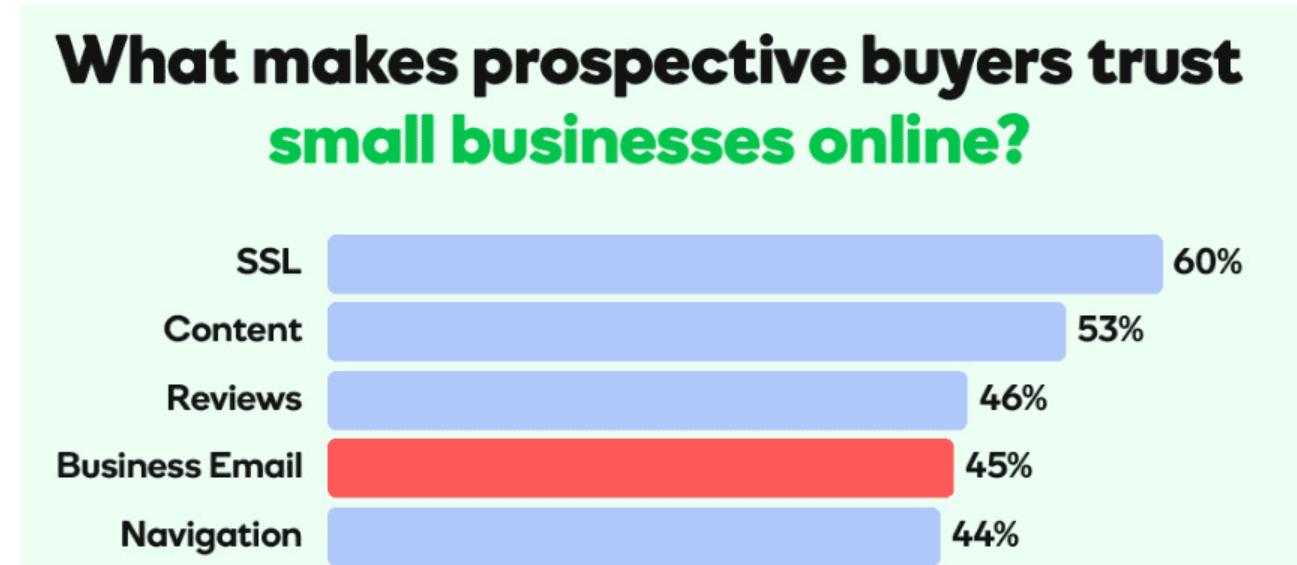
While a generic email address can be created and used for free for a lifetime, it does not give you that professional edge that you need to establish effective communication with your targeted customers. On the other hand, by making a small effort with minimum investment, you can create an email address that can significantly boost your professional online presence globally.
Here are the top five benefits of using a professional email address:
An email received from an address like info@companyname.co.site, or yourname@organizationname.org, looks professional and more trustworthy than an email received from a generic address like info@yahoo.com. A professional business email address conveys the idea that the email has come from a reliable and verified source.
The email deliverability is the percentage of emails that successfully land in your recipient’s inbox. Now, when you are using a customized domain for creating email addresses, it increases the sender score or reputation, thereby improving the chances of your email directly reaching the recipient’s inbox.
A generic email can impact your business's credibility. Around 33% recipients doubt its trustworthiness, 24% feel concerned when asked to share personal information, and 23% feel worried when they need to share credit card information.

If your email can be directly associated with the brand or the company name, it increases the credibility score of your email address. It reflects that your email address is legitimate and reliable.
What better way to strengthen your brand identity than by having it directly appear in your customers’ inboxes via a branded business email address? Yes, while you promote your new brand all over your website, social media, and other online platforms, using a professional business email address for communication can be another significant way to establish your brand identity.
According to a cybersecurity report, attempts to hack Gmail accounts increased by 243% between January and June 2024. Generic email addresses are inherently more vulnerable — they lack the advanced security infrastructure that comes standard with professional email hosting. When you create a business email address with a reputable provider, you gain access to features like end-to-end encryption, custom DKIM authentication, DMARC policy enforcement, advanced anti-spam filtering, and two-factor authentication (2FA). Together, these layers of protection significantly reduce the risk of account takeover, phishing attacks, and unauthorized access — keeping both your business data and your clients' information secure.
Not sure what your email address should look like? Here are the most widely used formats:
The first.last format is the most universally professional and easiest for recipients to recognize and trust. Role-based addresses like info@ or support@ work well for shared team inboxes.
When creating a professional email address, one of the first decisions is whether to use a free or paid solution. While free options can work for basic needs, paid tools offer more control, branding, and security.
For most businesses, communicating with clients or customers, a paid plan is the better long-term investment. Free tiers work well for testing a provider before committing, or for solo founders in the earliest stage of building their brand.
If you already have emails with another provider, platforms like GoDaddy allow you to migrate existing inboxes using IMAP or built-in migration tools. This ensures you don’t lose past communication when switching to a professional email setup.
With numerous business email service providers offering business email setup and hosting solutions, selecting the one provider that aligns with your requirements could be difficult. Here we have listed the features of the top three email hosting providers of 2026:
Now that you have a brief idea about the three best email hosting service providers, let’s explore how you can create a professional email address using each one of them:
Neo Mail is a leading email hosting service provider that offers professional business email address creation with or without an existing domain. That means, if you already have a registered domain like (.com, .net, .in, or any other domain), you can use it directly to create a customized email address for your business.
However, if you do not have a domain name, Neo Mail offers a free domain creation by adding a (.co.site) extension with each email plan. Also, each plan comes with a 15-day free trial, thus offering you a free business email with an opportunity to access all the features provided with the purchased plan. Other than email creation, it also offers quick website creation using AI.
Before purchasing a plan and creating your email address, you will need to either register a new domain or verify ownership of an existing one. When choosing a domain name, keep it short, easy to spell, and directly tied to your business name.
Use Neo mail's domain availability checker to confirm your preferred domain is not already taken. If your first choice is unavailable, try variations using hyphens, different domain extensions (.net, .co.site), or a slightly restructured version of your business name.
Once your domain is confirmed and verified, you can proceed to plan selection and email creation.
Here is a step-by-step process to create a professional email address using Neo Mail:
Step 1: Open Neo Mail’s website and click on the ‘Get Started’ option.
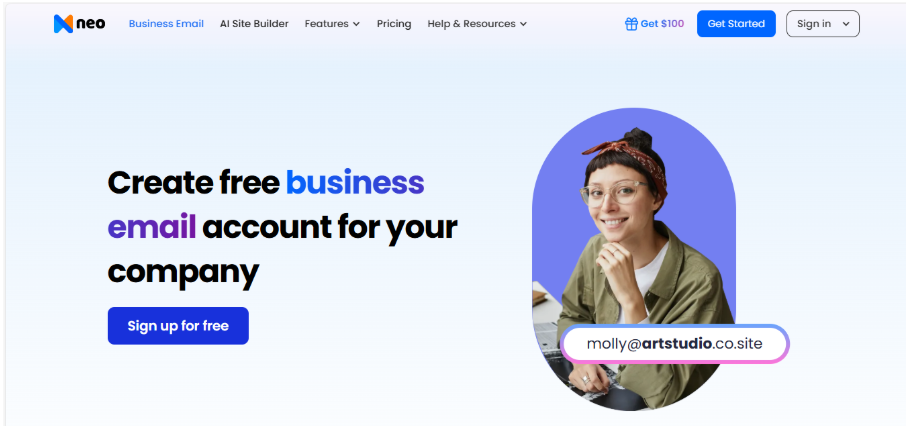
Step 2: If you already have a domain, choose ‘Yes, I have a domain I can use’ or else select ‘No I need a new domain’ when you want to create a domain for your new professional email address.
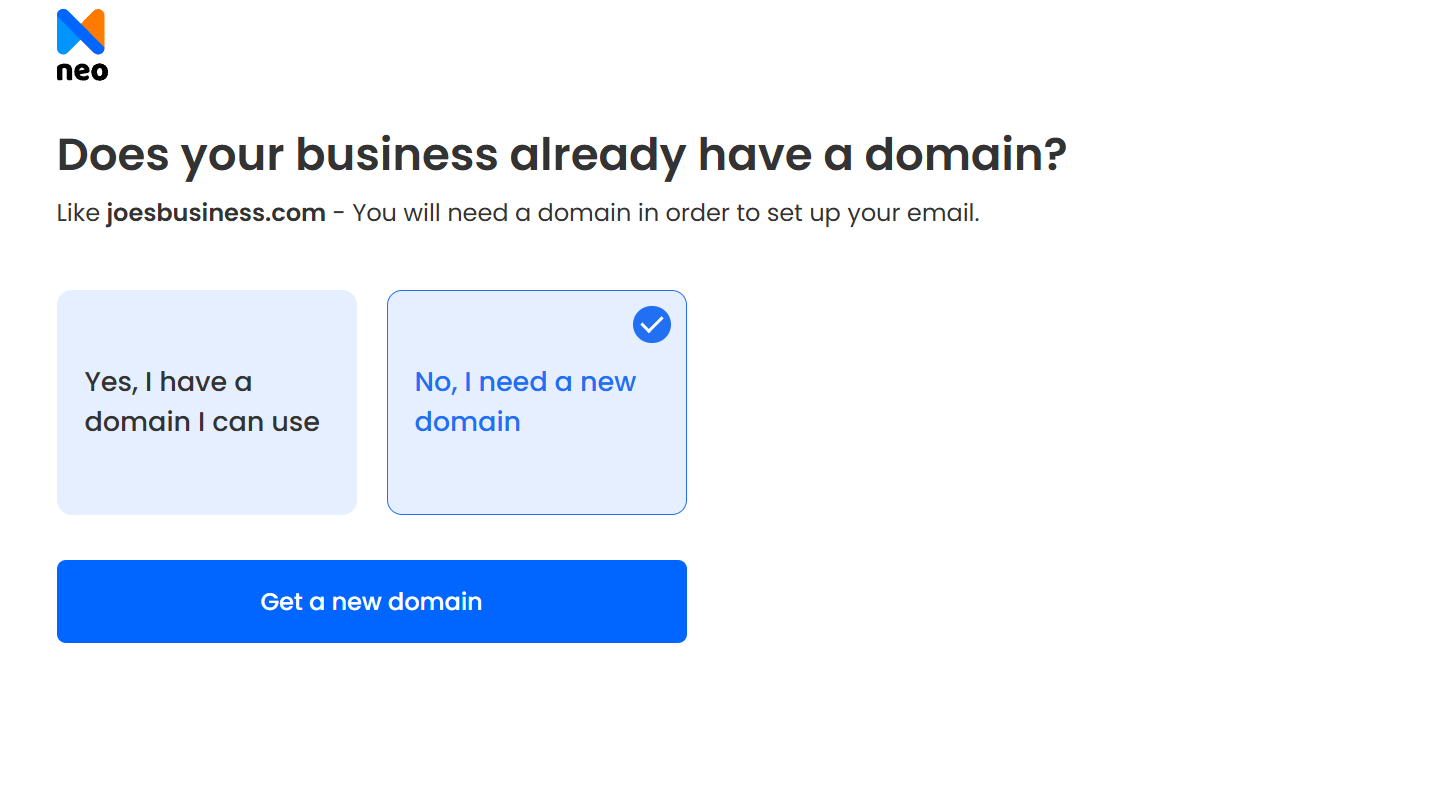
Step 3: Enter the domain name when you already have a registered domain. Neo Mail will verify its ownership, and once verified, you may proceed to the next step.
Alternatively, if you have clicked on No, I need a domain name, you will be required to enter the desired domain name in the box. Neo Mail will check its availability, add a (.co.site) extension, and register it under your ownership.
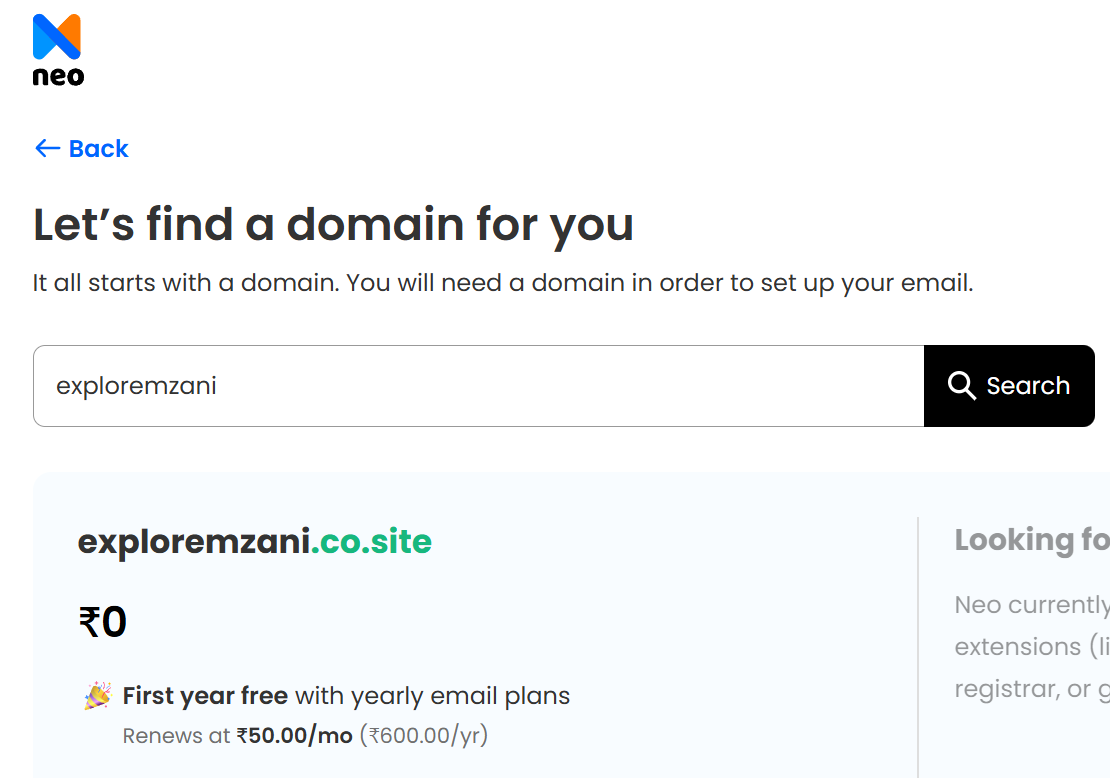
Once you are done with the domain registration process in both cases, click on ‘Continue’. You will be eligible for a 15-day free trial plan.
Step 4: Now, you need to create your Neo Mail customer account and select the email plan according to your business requirements and budget.
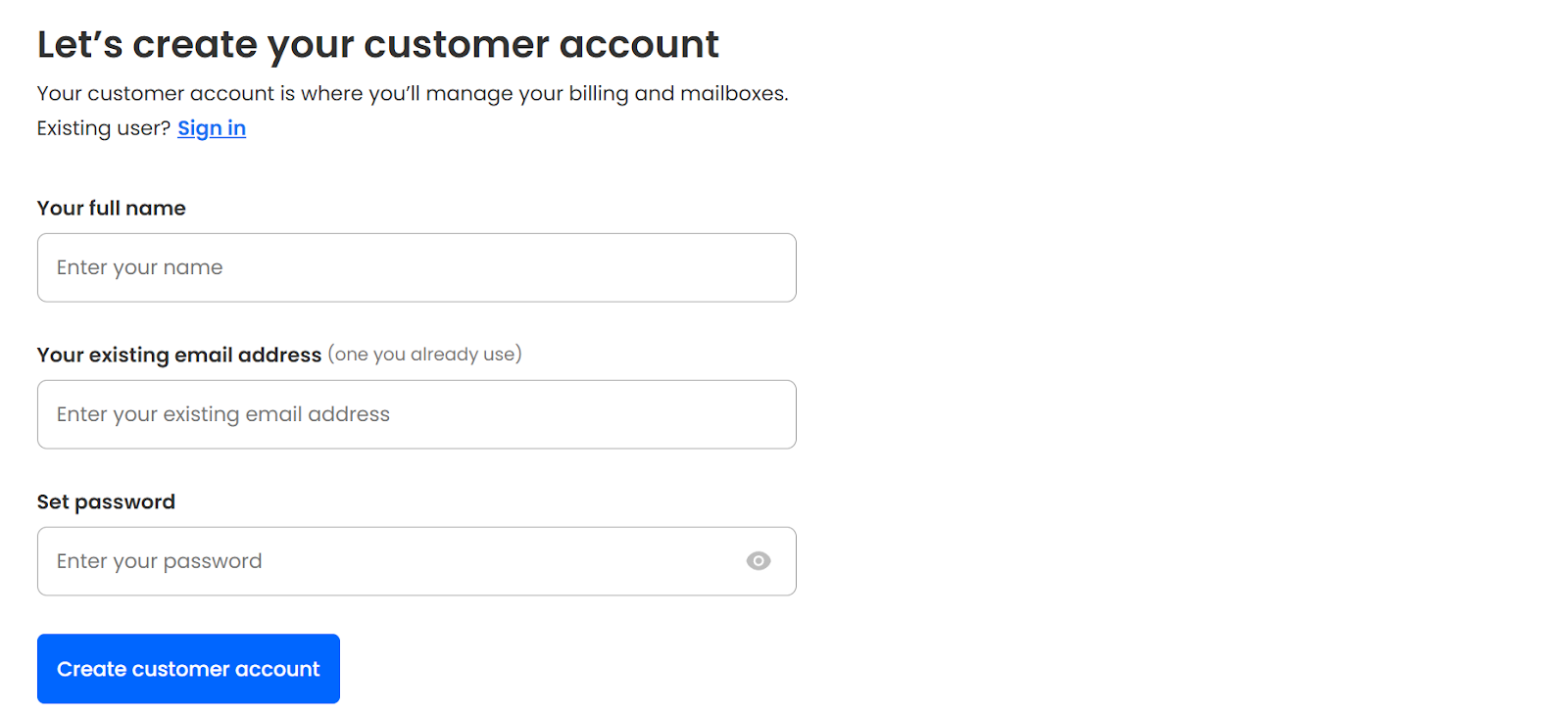
Step 5: Finally, you can create your professional email address with your previously registered domain name or the domain created using Neo Mail (the one with a .co.site extension). For example, you can create an email address for your business like yourname@brandname.com or yourname@brandname.co.site.
Just remember to update the DNS settings when you are using your already registered domain for email creation. It will allow emails to flow in and out through Neo Mail’s server.
Zoho offers a secured and feature-rich platform for professional domain emails. It provides both free and paid plans that you can customize according to your requirements.
Zoho's free plan allows up to 5 user accounts with 5GB of storage per user and supports email hosting for a single domain — making it a workable starting point for very small teams or solo founders.
However, the free tier does not include email backup, advanced security features, or collaboration tools. When your team grows or your communication needs increase, upgrading to the Mail Lite plan at $1/user/month unlocks additional storage, email retention, and priority support. For teams that also need calendar, docs, and video conferencing, the Workplace plan at $3/user/month bundles all of Zoho's collaboration tools alongside email.
Here’s how you can create a business email address with an existing or new domain with Zoho:
Step 1: You will be asked to select a plan. Choose a free or a paid plan, according to your budget and business needs.
Step 2: Create a Zoho account after you select a plan.
Step 3: If you have a registered domain, select ‘ Add an existing domain’ and click on ‘Add now’.
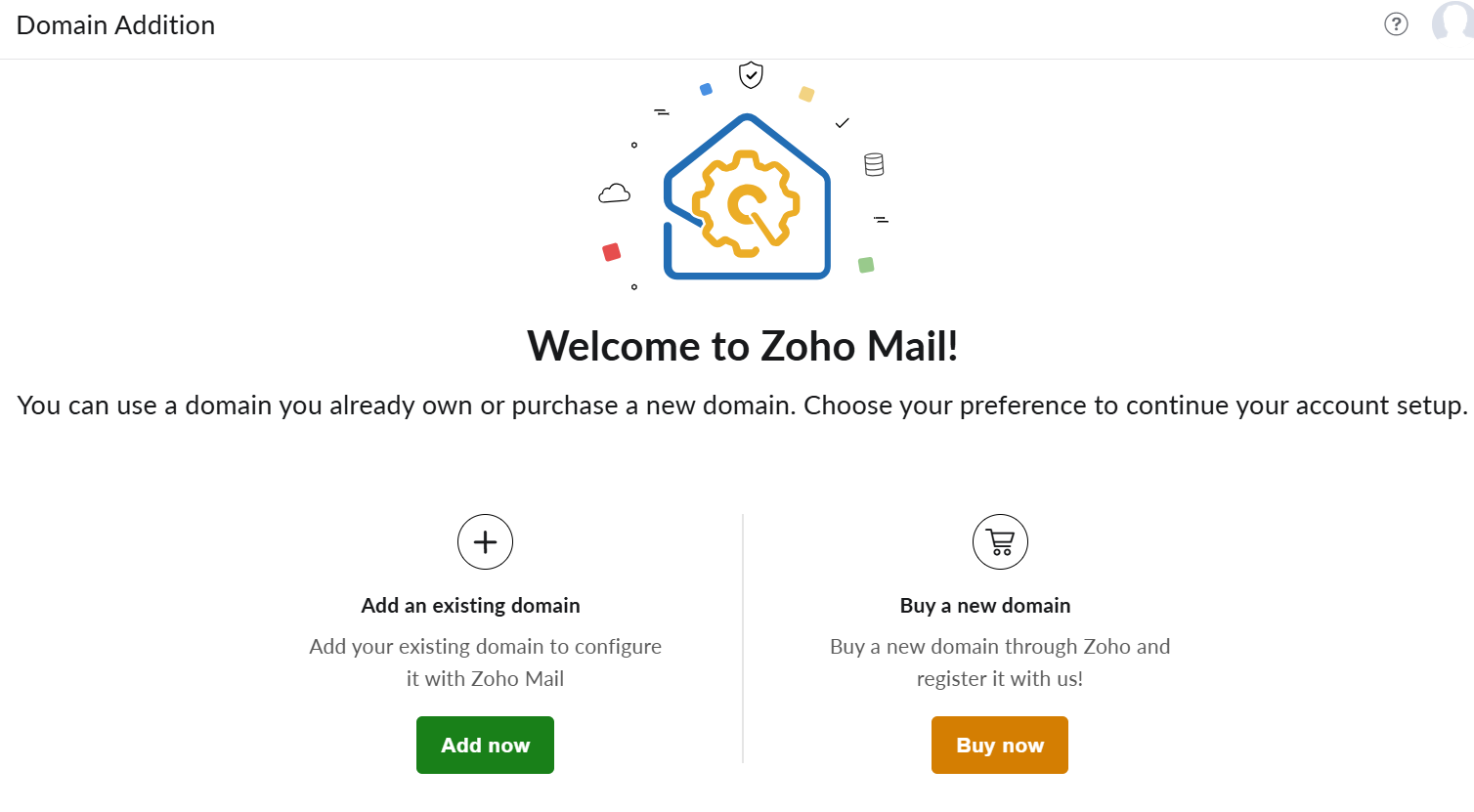
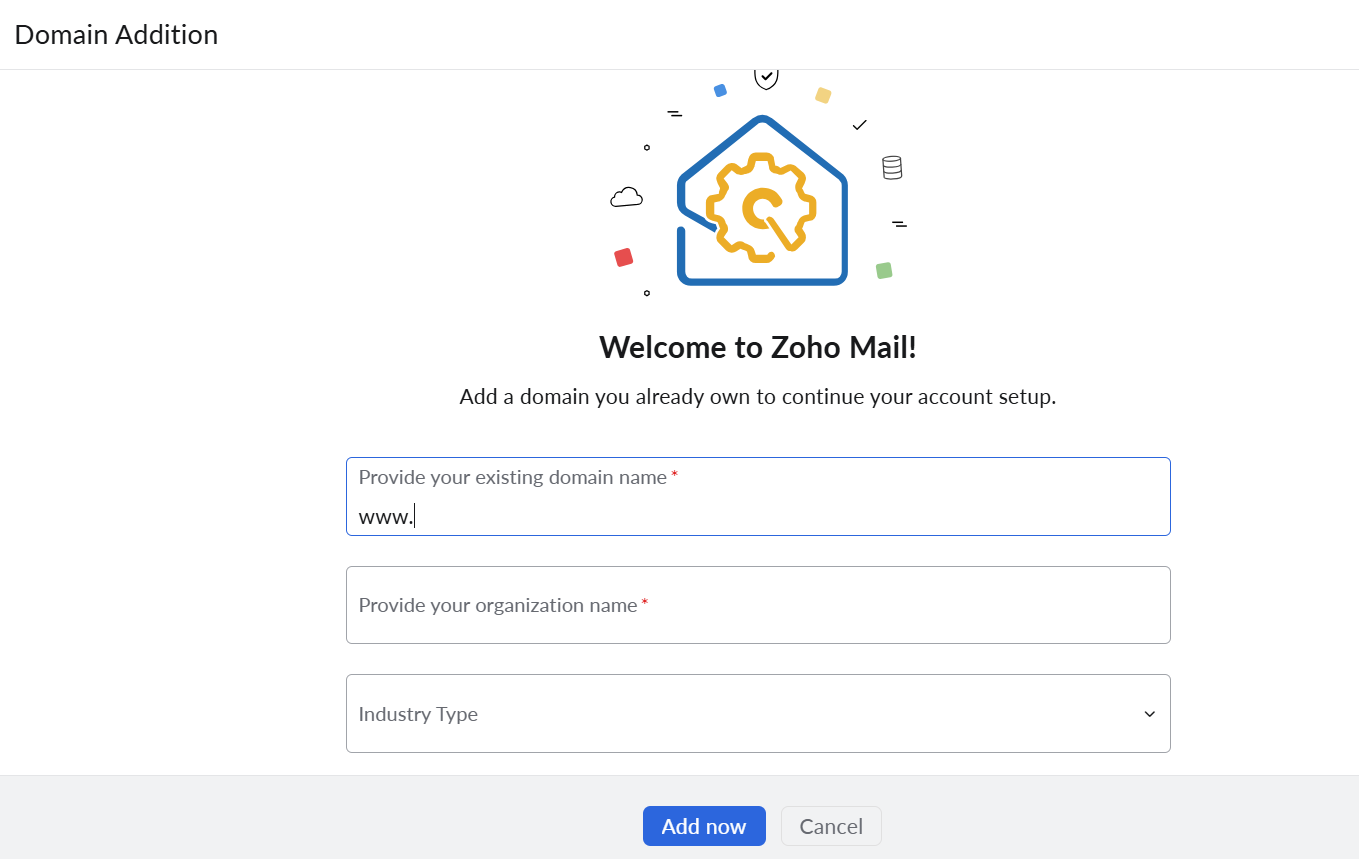
Enter the domain name to verify its ownership.
Or else if you don’t have a domain name and want to buy one on Zoho, choose ‘Buy a new domain’. Enter the domain name you desire, and Zoho will check its availability. If it’s available, you can sign up and purchase on Zoho.
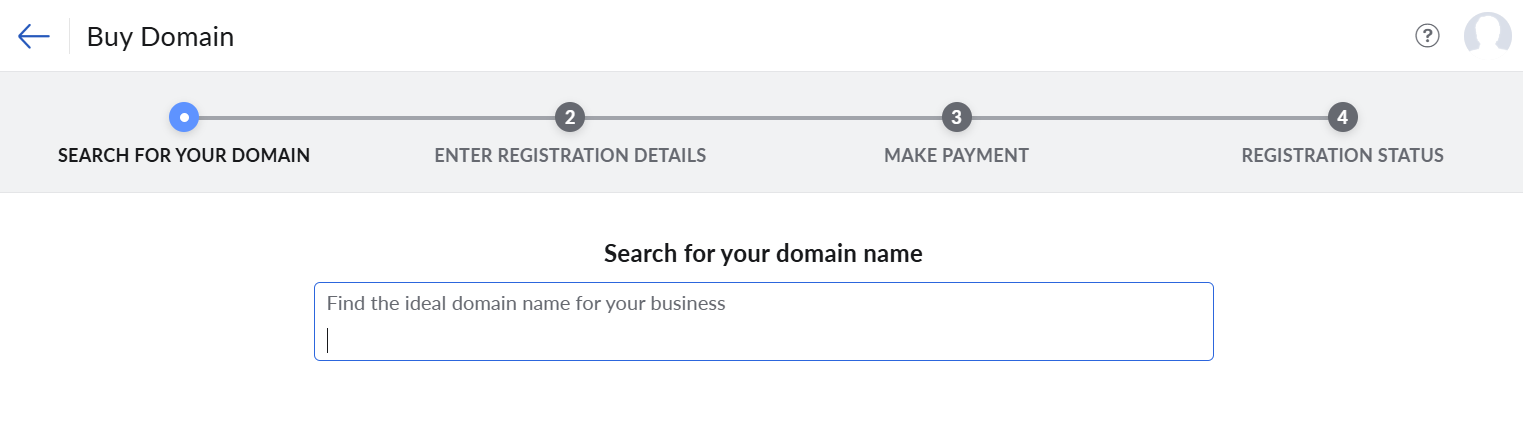
Step 4: Enter the registration details as asked on the Zoho portal and click on ‘Proceed’. Once you have entered all the details correctly, click on Sign up to complete the registration.
Step 5: Now, you add users and create professional email addresses, like admin@yourdomain.com, yourname@companyname.net, name@brandname.in, etc.
Step 6: Next, configure the MX records to allow emails to send and receive through Zoho’s DNS server.
Step 7: In case you are migrating from another service provider to Zoho, move all your emails through IMAP or POP protocols.
Step 8: Lastly, update the SPF and DKIM configurations to ensure email deliverability.
Although Superhuman does not offer domain creation and email hosting services, it offers its dynamic email services like split inbox, write with AI, Auto labels, Ask AI, calendar, and other email productivity tools on a secure platform. It integrates seamlessly with Google and Microsoft, allowing you to use your branded professional email address on its advanced, AI-powered email application.
To avail email app services of Superhuman, you can sign up on the Superhuman platform using your registered custom email address or through a Gmail or Outlook account. Here’s how to do it:
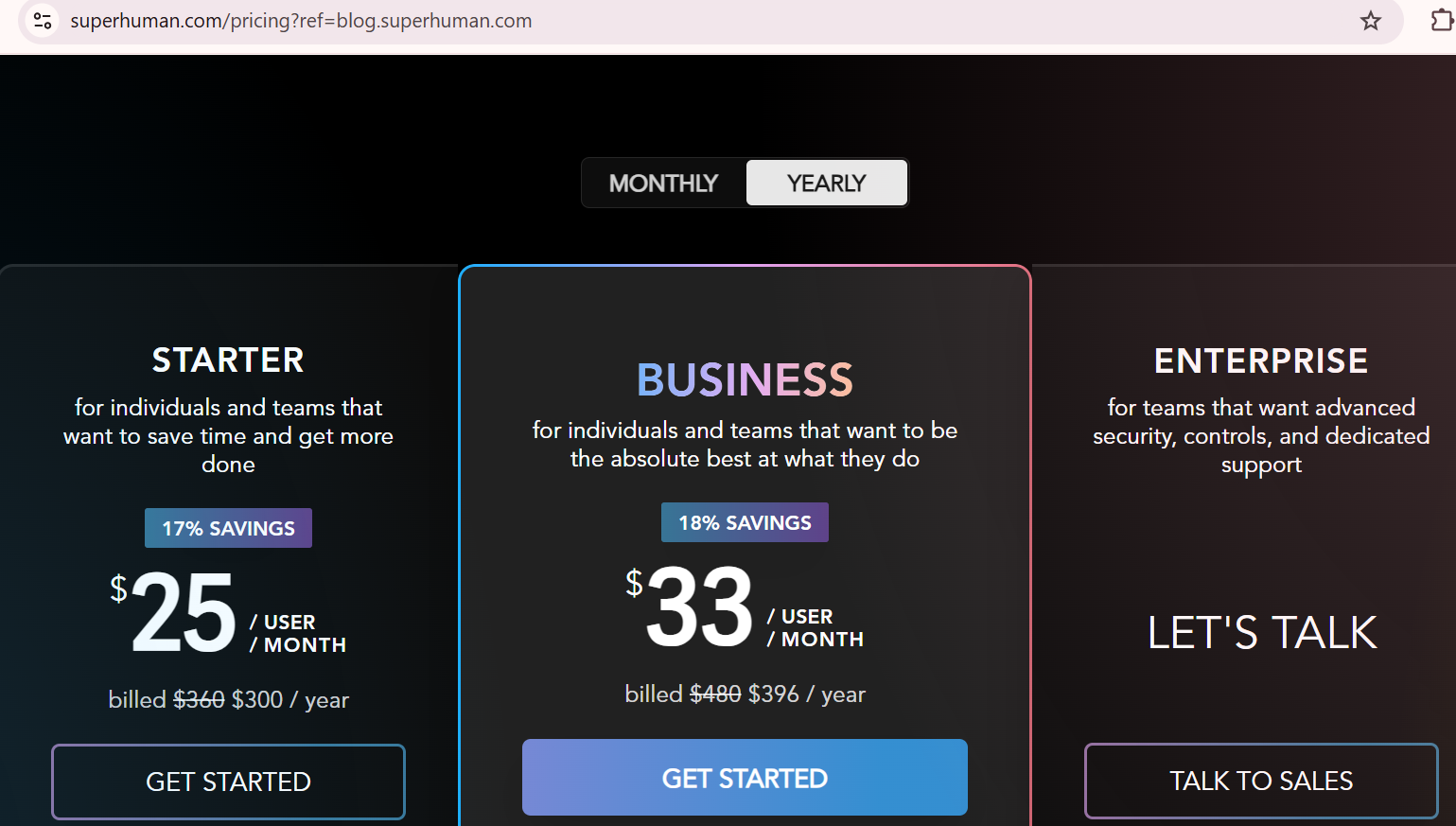
Step 1: Open the Superhuman website and select the subscription plan.
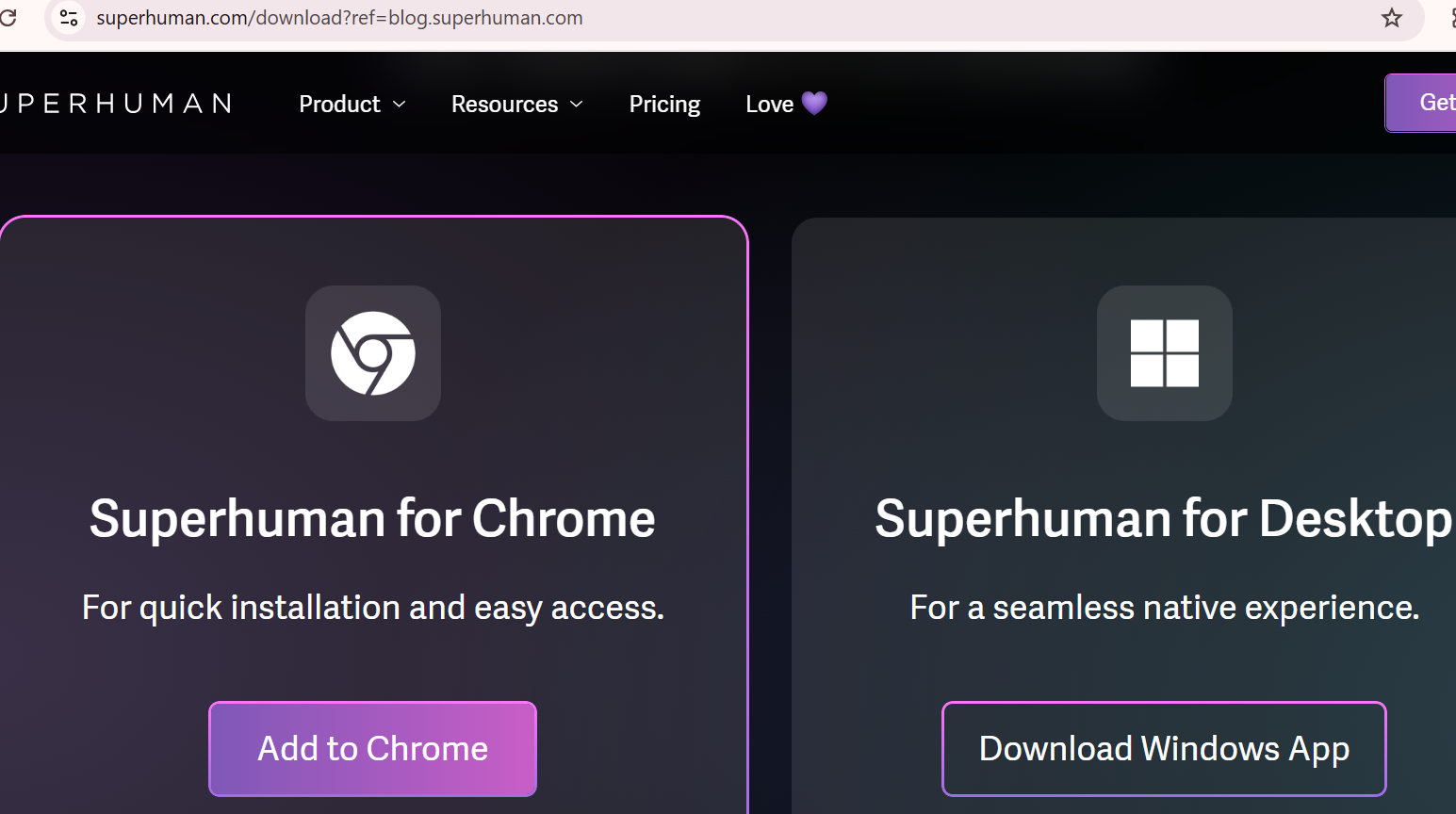
Step 2: According to your device compatibility, download the superhuman app.
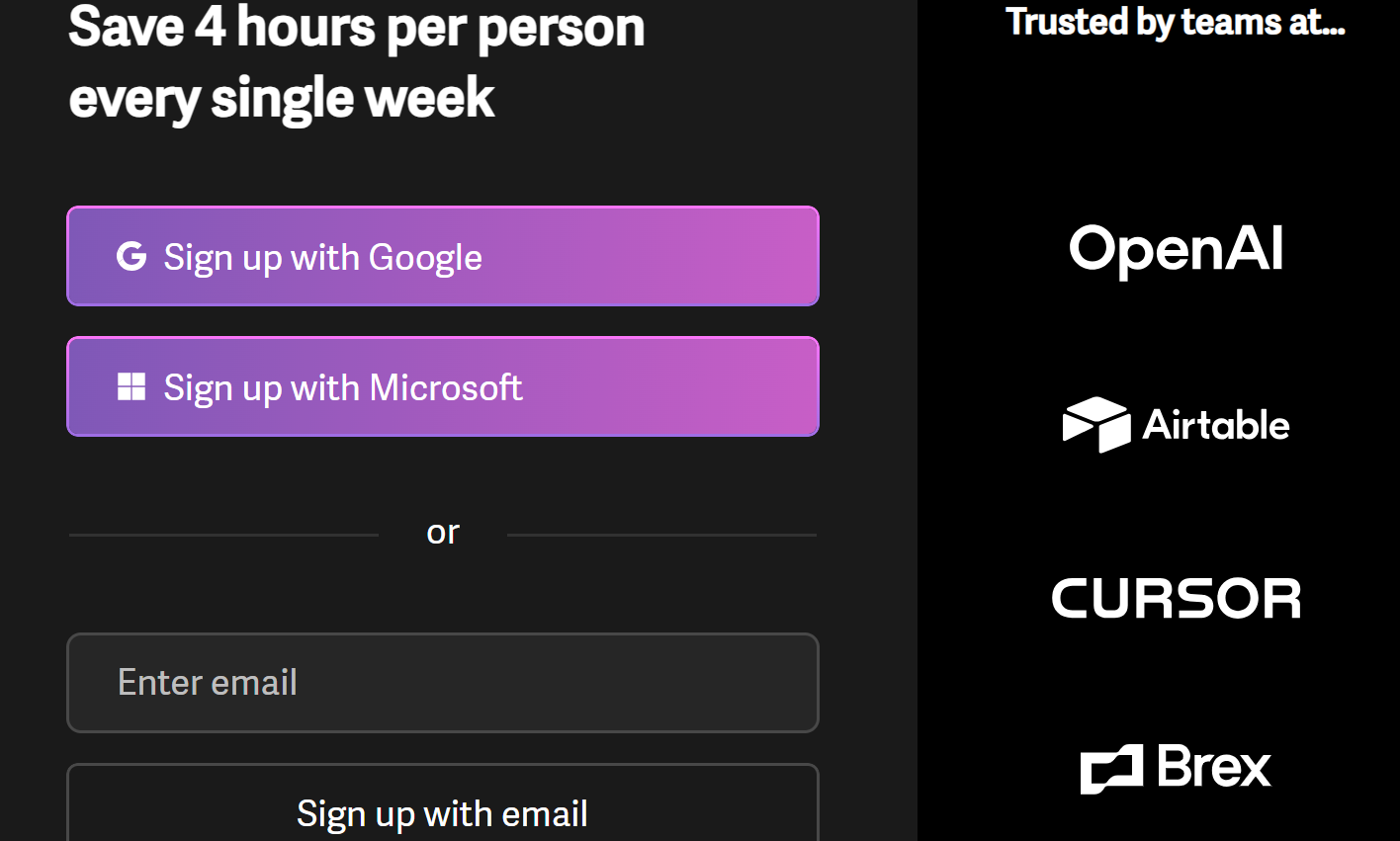
Step 3: Choose the email account for which you wish to gain the Superhuman email app services. You can sign in with your profession email address registered on Google or on Outlook. If you have a registered custom email address, then you can sign up with that as well.
Step 4: Now open the command panel, and click (CMD+K) for Mac users, or (Ctrl + K) for Windows users. This will add a Superhuman email account to your device.
Step 5: To switch between multiple accounts on mobile, click on the profile picture on the Superhuman app and select the desire account. Also, if you can open a separate Gmail or Outlook account on different tabs and auto-restore them, to remember the settings.
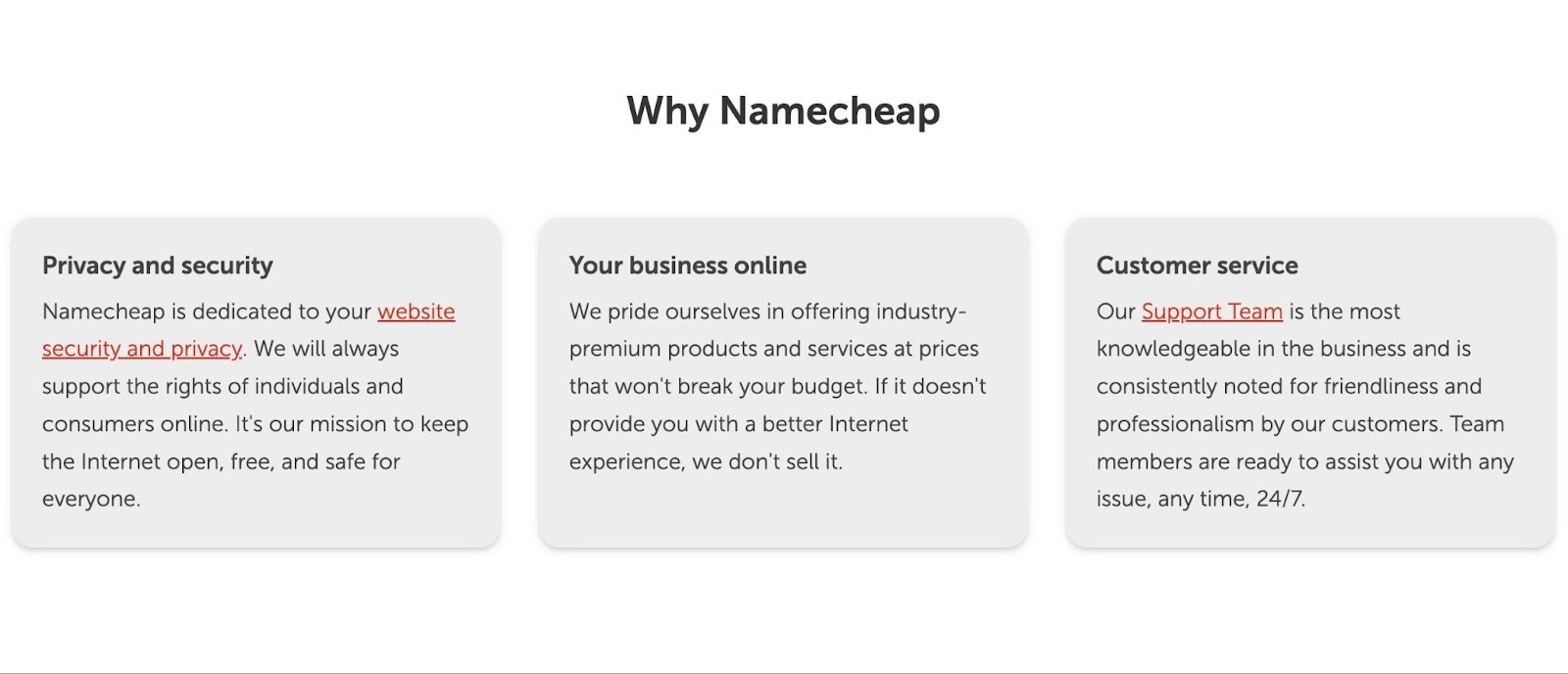
Namecheap is one of the most popular domain registrars for small businesses and budget-conscious users, and it also offers affordable professional email hosting bundled with domain registration.
Its email plans start at $14.90 /year, making it one of the most cost-effective options for individuals and early-stage businesses that need a custom domain email without a large upfront investment.
Namecheap's email hosting includes 5GB storage per mailbox, spam and virus protection, two-factor authentication, webmail access, and compatibility with any third-party email client like Outlook or Apple Mail.
If you are registering a new domain and want to set up a professional email address in the same step, Namecheap makes the process straightforward and affordable.
Step 1: Go to Namecheap.com and search for your preferred domain name using the domain search tool. Once you find an available domain, add it to your cart and complete the purchase.
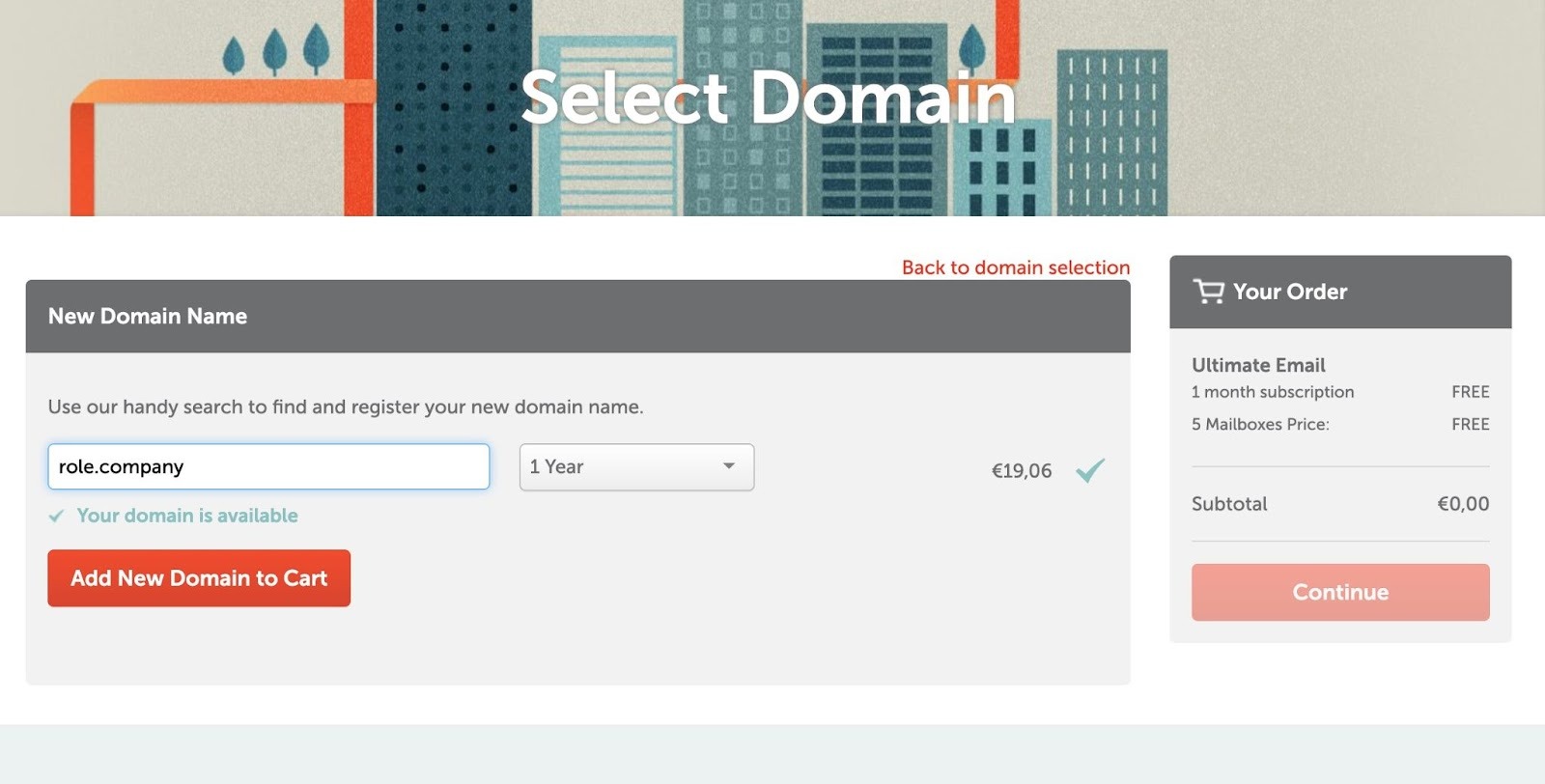
Step 2: From your Namecheap dashboard, navigate to the Email Hosting section and select a plan. Plans start from $14.90 /year and include webmail access, spam and virus filtering, and 2FA.
Step 3: Once your email hosting plan is active, create your mailboxes by entering your preferred email username — for example, yourname@yourdomain.com.
Step 4: Update your domain's MX records to point to Namecheap's email servers. Namecheap provides step-by-step DNS configuration instructions in their knowledge base.
Step 5: Access your inbox via Namecheap's webmail portal, or connect your new email address to any third-party email client like Outlook or Apple Mail using the provided IMAP/SMTP settings.
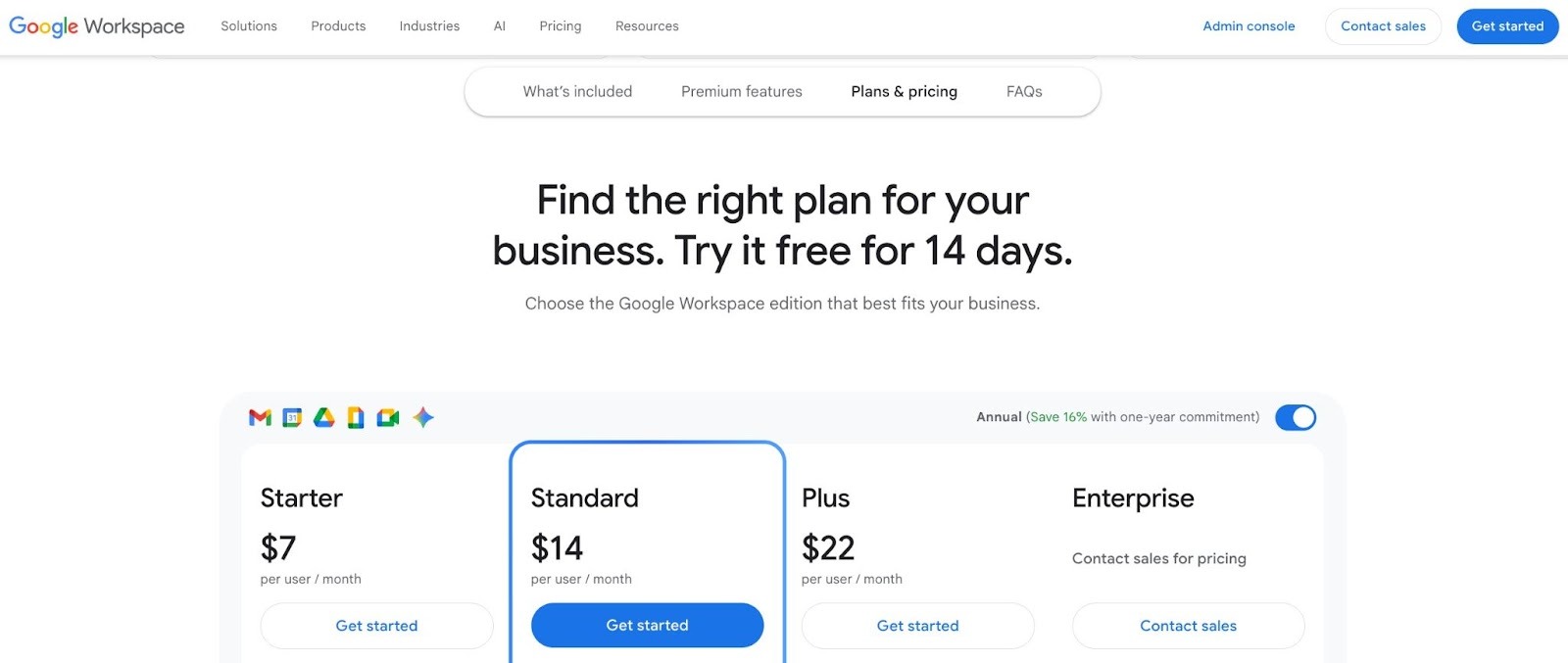
Google Workspace offers tiered storage starting at 30GB per user on the Business Starter plan ($6/user/month), scaling to 2TB on Business Standard ($12/user/month) and 5TB on Business Plus ($18/user/month).
Beyond storage, every plan includes centralized admin controls, single sign-on, endpoint management, and Google's advanced anti-phishing and malware protection.
Google Workspace is also ISO 27001, SOC 2, and SOC 3 certified — making it a strong choice for businesses in regulated industries or those handling sensitive client data. The seamless integration with Google Meet, Drive, Docs, and Calendar makes it the most comprehensive collaboration suite on this list.
Step 1: Go to workspace.google.com and click "Get Started." Enter your business name, number of employees, and country.
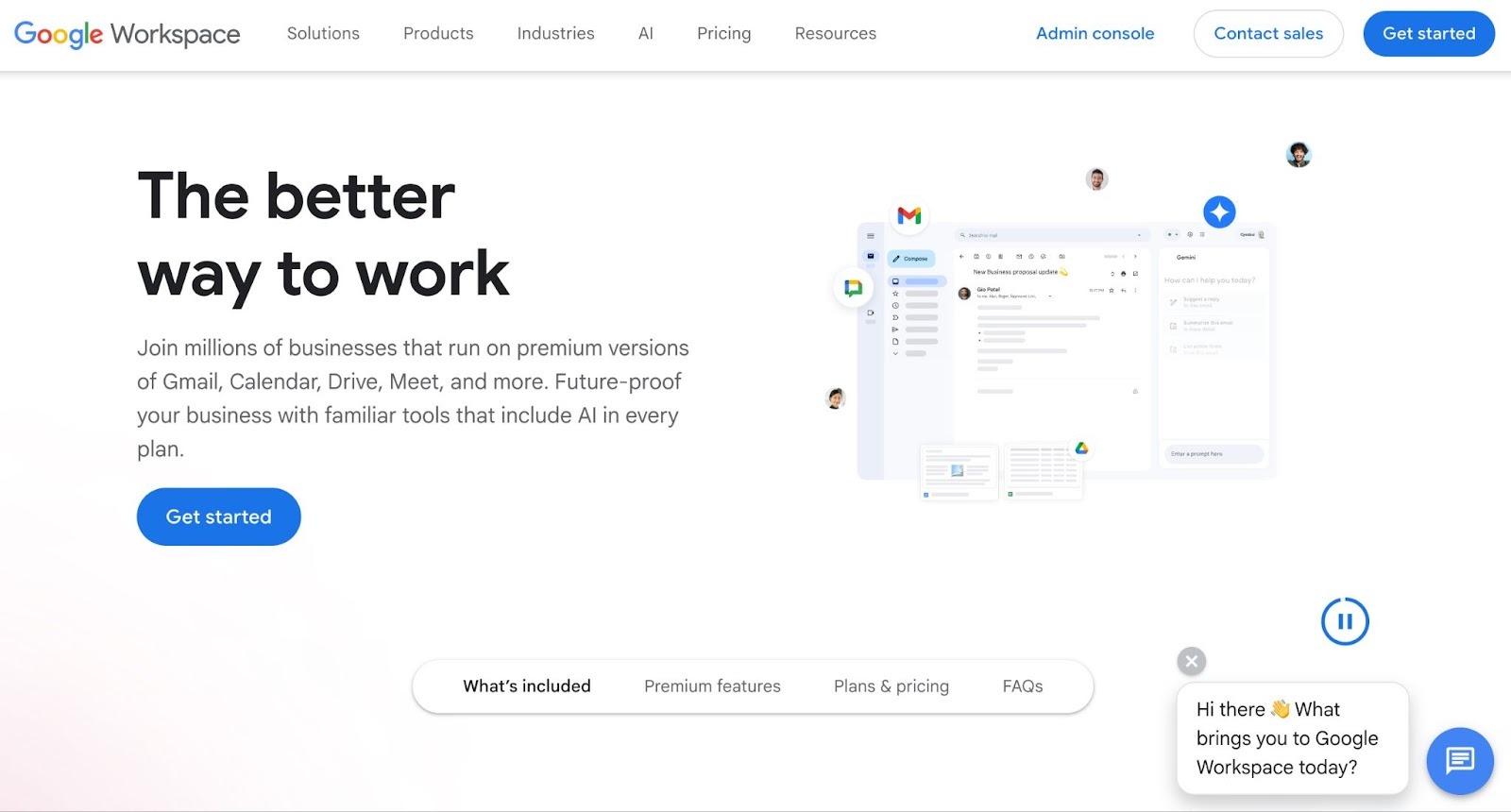
Step 2: Enter the custom domain you want to use for your email. If you already own a domain, select "I have a domain." If not, you can purchase one directly through Google during setup.
Step 3: Create your Google Workspace admin account by entering your preferred email username and password — this will become your primary business email address (e.g., yourname@company.com).
Step 4: Select a plan. Business Starter starts at $7/user/month and includes 30GB storage, custom email, and access to all Google apps. Business Standard ($14/user/month) increases storage to 2TB and adds meeting recordings.
Step 5: Verify your domain ownership by adding a TXT record to your domain's DNS settings. Google provides a specific verification code and instructions for all major domain registrars.
Step 6: Update your MX records to route email through Google's servers. Once DNS changes propagate (usually within 24–48 hours), your professional email address will be fully active.
Step 7: Add additional users and create email addresses for your team members from the Google Workspace Admin Console.
Microsoft 365 Business Basic ($6/user/month) covers custom domain email via Outlook, 1TB of OneDrive storage, and access to Teams for video and chat.
Business Standard ($12.50/user/month) adds desktop versions of Word, Excel, PowerPoint, and the full Office suite alongside all email features.
For compliance-heavy industries, Microsoft 365 includes enterprise-grade security features such as data loss prevention, eDiscovery, and advanced threat protection — making it the preferred choice for legal, financial, and healthcare businesses that need both email and regulatory compliance in one platform.
Step 1: Go to microsoft.com/microsoft-365/business and choose a plan. Business Basic ($6/user/month) covers email and Teams. Business Standard ($12.50/user/month) adds desktop Office apps.
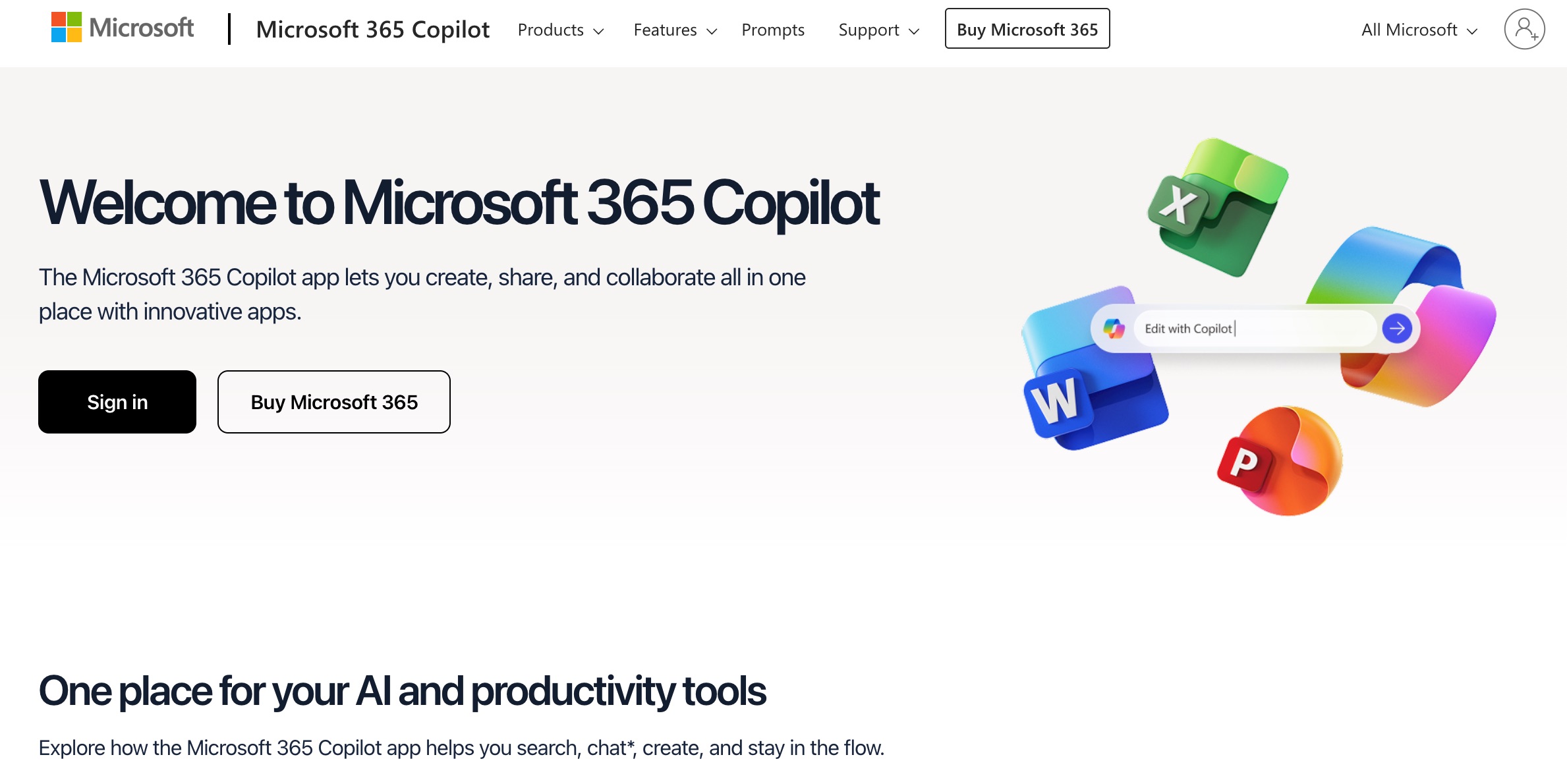
Step 2: Create your Microsoft account and enter your business details during the setup wizard.
Step 3: Add your custom domain by navigating to the Admin Center and selecting "Add a domain." Enter your domain name and follow the prompts to verify ownership by adding a TXT record to your DNS settings.
Step 4: Update your domain's MX records to route email through Microsoft's servers. The Admin Center provides the exact DNS values you need to enter at your domain registrar.
Step 5: Create user accounts and assign email addresses in the Admin Center — for example, yourname@company.com or team@company.com.
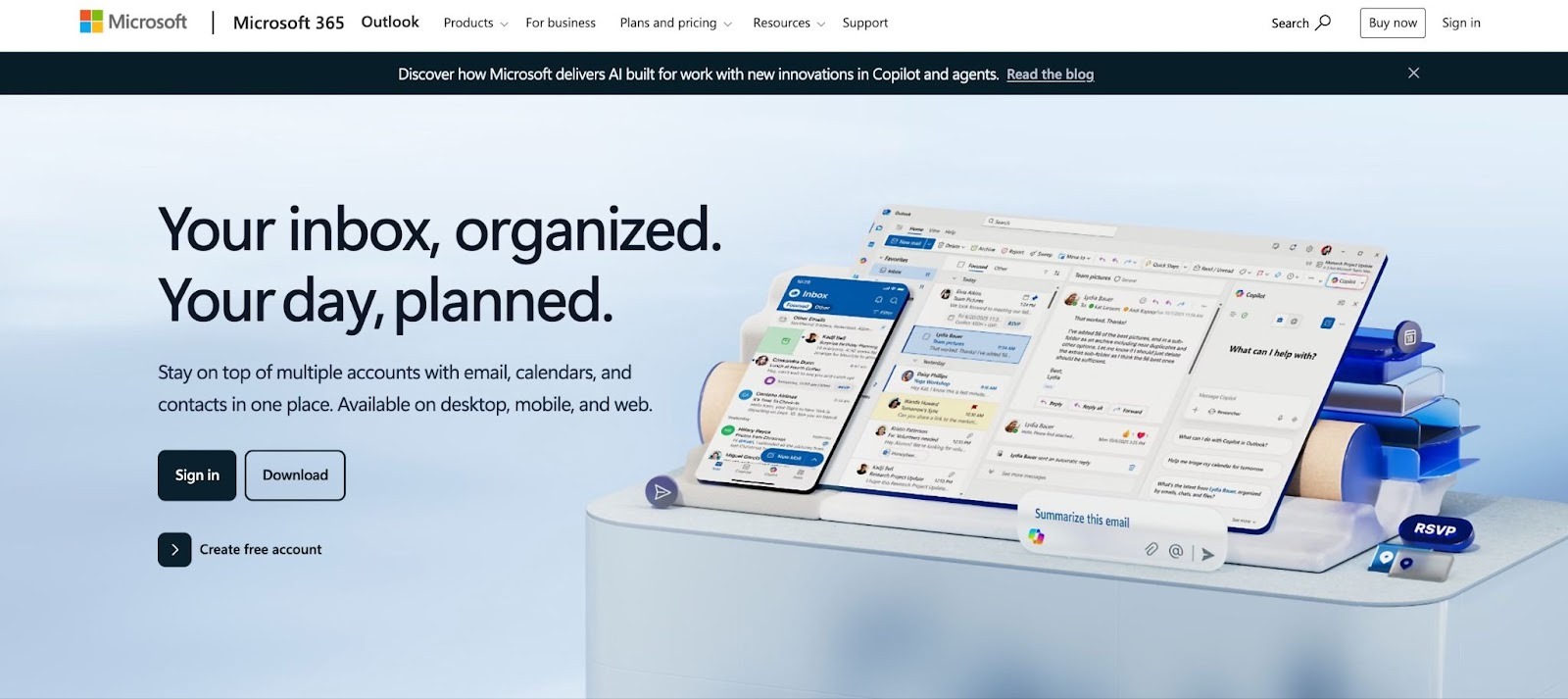
Step 6: Access your email through Outlook on the web at outlook.office.com, download the Outlook desktop app, or set up Outlook on your mobile device. Microsoft Teams is also automatically available for chat and video calls across all Business plans.
Although email addresses like dancingdoll@dancelovers.com, hotsoftware@gamerszone.org, or happy123@cusininesofthecountry.in are created using customized local-part (username) and domain, do they sound professional? Probably not, right? Why? They seem cute, funny, or can be used for informal communities; however, for reflecting a modern professional approach, they seem inappropriate.
Thus, to make sure that your professional email address looks professionally credible and creates a trustworthy impression, here are the five tips that you can follow:
Instead of using names like ‘rockstarricky@’, ‘name123@’, or ‘coolgirl@’, select real names like ‘john@companyname.com ’, registered brand names like ‘candelories@lightsandcandles.in ’, or company department names like ‘sales@techcrafts.com’. Such names reflect a professional image, are easy to associate with the company, and don’t look unreliable.
Among all username formats, firstname.lastname@company.com is widely considered the gold standard for professional email addresses. It is personal, easy to remember, and immediately identifiable. Here are the most common variations ranked from most to least formal:
Even with a custom domain, the wrong username format can undermine your professional image. Here is what to avoid:
An eCommerce website having a domain extension like .org does not look correct. So, choose the appropriate domain extension according to your business type. Such as,
To make your professional address look authentic and easy to remember, keep the names short and avoid creating email addresses like ‘john0598@companyname.com’ or ‘info#34@organizationname.org’. It can make your email address look spammy and difficult for people to remember.
Almost every email hosting service provider today offers in-built security features like 2FA, SPF, and encryption at the time you purchase a domain name or create professional email address from their platform. However, if they don’t, make sure that you integrate features like Custom DKIM, end-to-end encryption, DMARC, and two-factor authentication (2FA) while business email setup.
Remember to add email aliases for your teammates or departments like admin@companyname.in, sales@companyname.in, accounts@companyname.in, or customersupport@companyname.in, and keep email forwarding all these addresses to your main inbox. It will help you keep your mailbox organized, clean, and discover priorities.
A professional email address can be a stepping stone for a new business looking to enter the online world with an innovative approach. Or it can be a credibility booster for a small-scale business that desires effective and meaningful communication with its target audience.
Just remember to choose the right username, domain name, and extension from the right business email service provider because the right professional email address can be your first step to enhanced customer engagement and long-term business success.
Want to read more such articles that offer niche details about the latest email marketing, SEO, SMM, and CRO tools? Explore here.
Most email hosting service providers offer a free professional email address for a limited period or features. Platforms like Neo offer a free customized email address for 15 days. Paid professional email addresses are purchased on a monthly or annual basis, with different features included with each plan type.
Your Gmail address is suitable for communicating with friends, family, or for informal communications. However, if you want to communicate professionally at work or with your customers, you should create a professional email address.
Although you can choose any email service provider that offers hosting services according to your budget and business requirements. While Neo and Zoho are leading domain and business email service providers, Superhuman is one of the best email applications that offer advanced capabilities in cost-effective plans.
Yes, some providers like Zoho offer limited free plans. However, most free options do not include a custom domain, which is essential for a truly professional email.
A free Gmail account is not considered fully professional. However, Google Workspace allows you to use Gmail with your own domain (e.g., yourname@company.com), which is a professional solution.
The most recommended format is first.last@company.com. It is simple, recognizable, and scalable for teams.
Examples include info@company.com, john.smith@company.com, and support@brand.com.

Cindy is an Outreach Manager and SEO Specialist at ONSAAS who helps SaaS companies grow through strategic link building and SEO. Outside of work, she loves spending time in nature, especially hiking in the mountains.
.svg)
.svg)
.svg)
.svg)
.svg)